How to film yourself alone with two phones
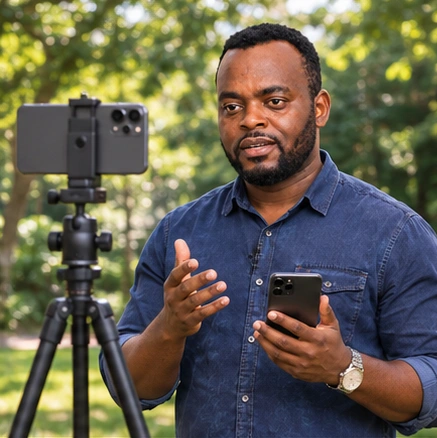
Put one Android phone on a tripod and use the other as a wireless viewfinder. Once paired, you can check your framing from where you stand and start recording from the monitor.
Solo Camera is currently available through an approved Android test. Open the test link on your phone and sign in with your approved Google account.
Where is my recording saved?
Your video is saved on the phone doing the filming. The second phone lets you see the shot and control recording.
PART 1Install and open Solo Camera
- If you do not have the app yet, open Open the Google Play test and tap Install.
- Open Solo Camera on both phones.
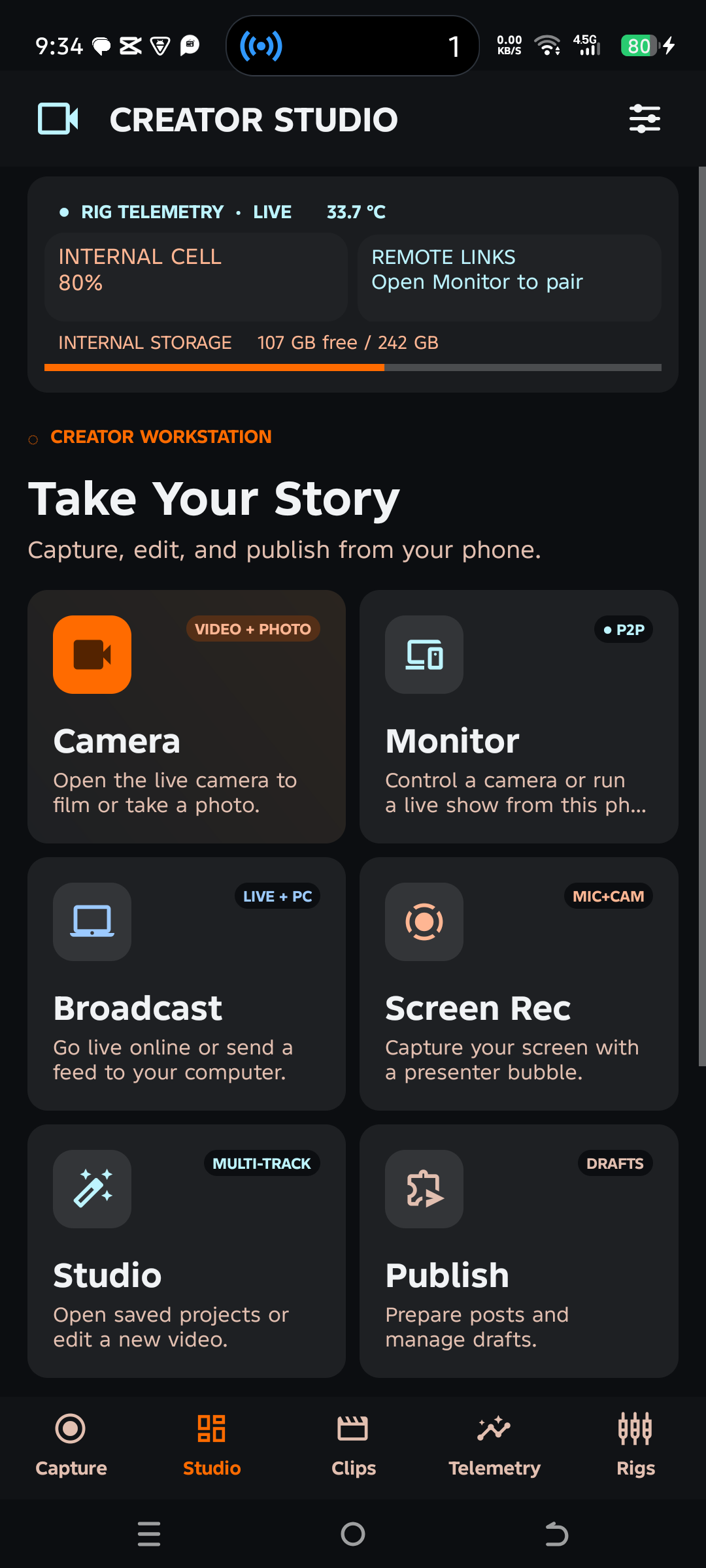
- On the home screen, tap Camera on the phone doing the filming. Open Solo Camera on the second phone and tap Monitor.
 1
PART 2Put both phones on the same network
Use the same Wi-Fi or connect the second phone to the camera phone’s hotspot. Open Camera on the phone doing the filming. On the other phone, open Monitor.
12 Put both phones on the same networkPART 3Choose Camera Monitor
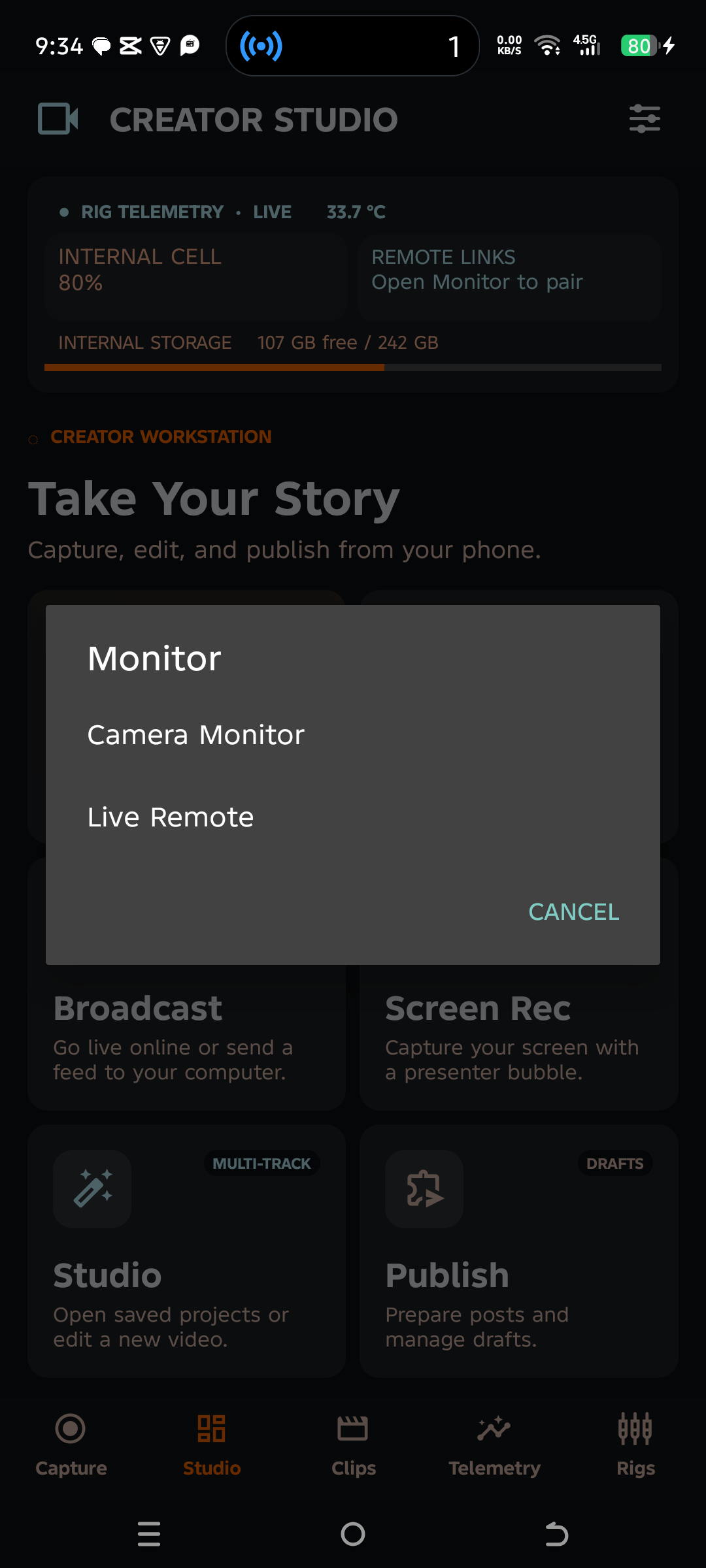
Open pairing on the camera phone to show its QR code. On the second phone, tap Camera Monitor and scan that code. Wait for a moving picture, then use the monitor to check framing and start recording.
 3
PART 4Scan the QR code
Tap Scan QR Code on the monitor, then approve the connection on the camera phone.
Illustrated screenMonitor and remote pairing
Scan QR CodeUse the QR shown on the camera phone
ScanApprove connectionConfirm the monitor on the camera phone
Approve
STEP 5Record a short take before the full video
- Stand where you will present and look at the monitor. Check that your head and hands stay in frame.
- Tap the record control on the monitor, speak one line, then stop.
- On the camera phone, open your recent take and play it back. If your voice is hard to hear, move the microphone closer before the full take.