How to record an app demo with your face and voice
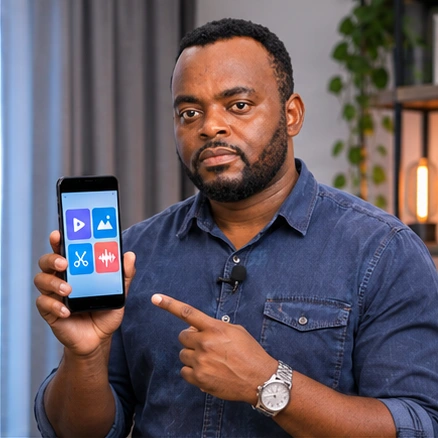
Record your Android screen with microphone narration and a movable face camera bubble. Make a short test first, then record the walkthrough and review the saved video.
Solo Camera is currently available through an approved Android test. Open the test link on your phone and sign in with your approved Google account.
What will this guide help me do?
Record your Android screen with microphone narration and a movable face camera bubble. Make a short test first, then record the walkthrough and review the saved video.
PART 1Install and open Solo Camera
- If you do not have the app yet, open Open the Google Play test and tap Install.
- Open Solo Camera on your phone.
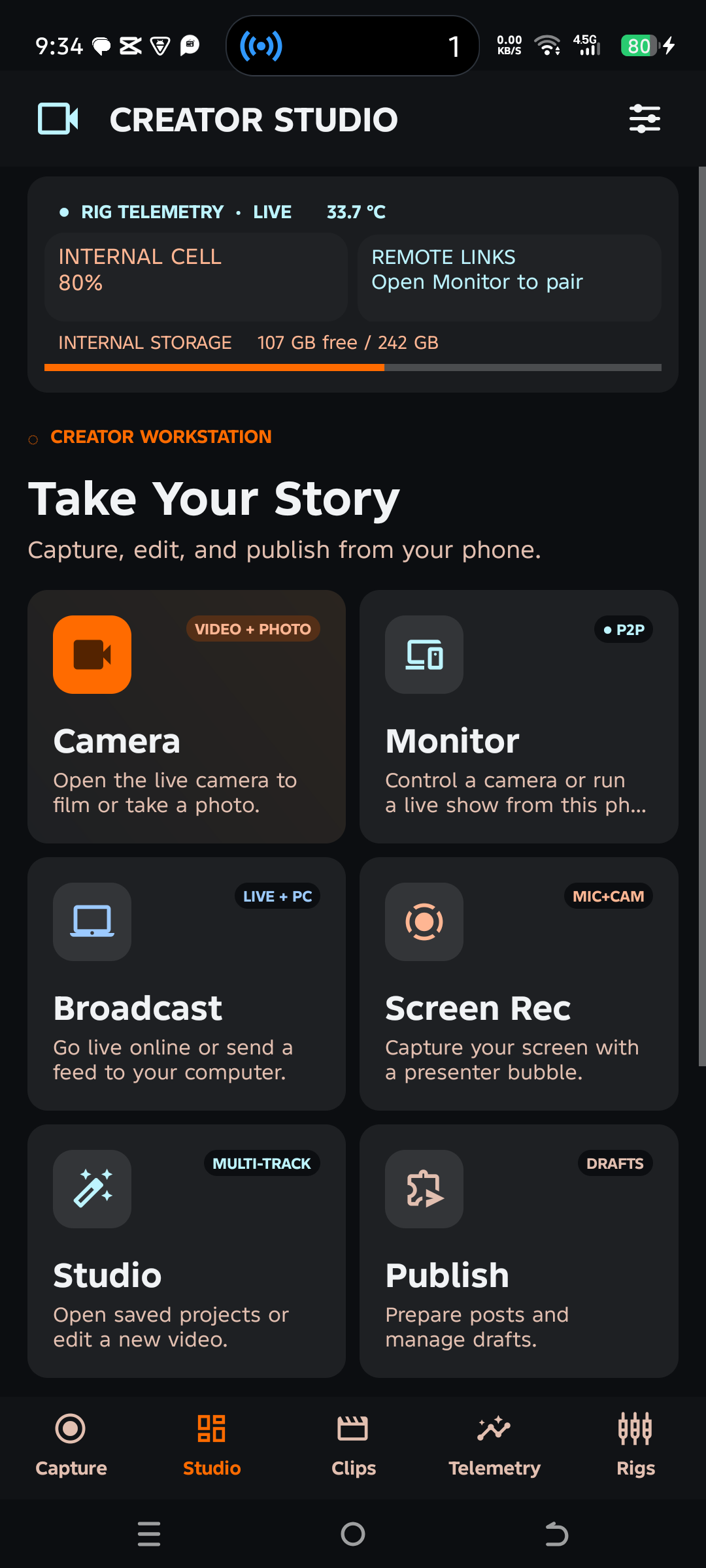
- On the home screen, tap Screen Rec.
 1
PART 2Open Screen Rec
Tap Screen Rec.
1 Open Screen RecPART 3Turn on your mic and camera
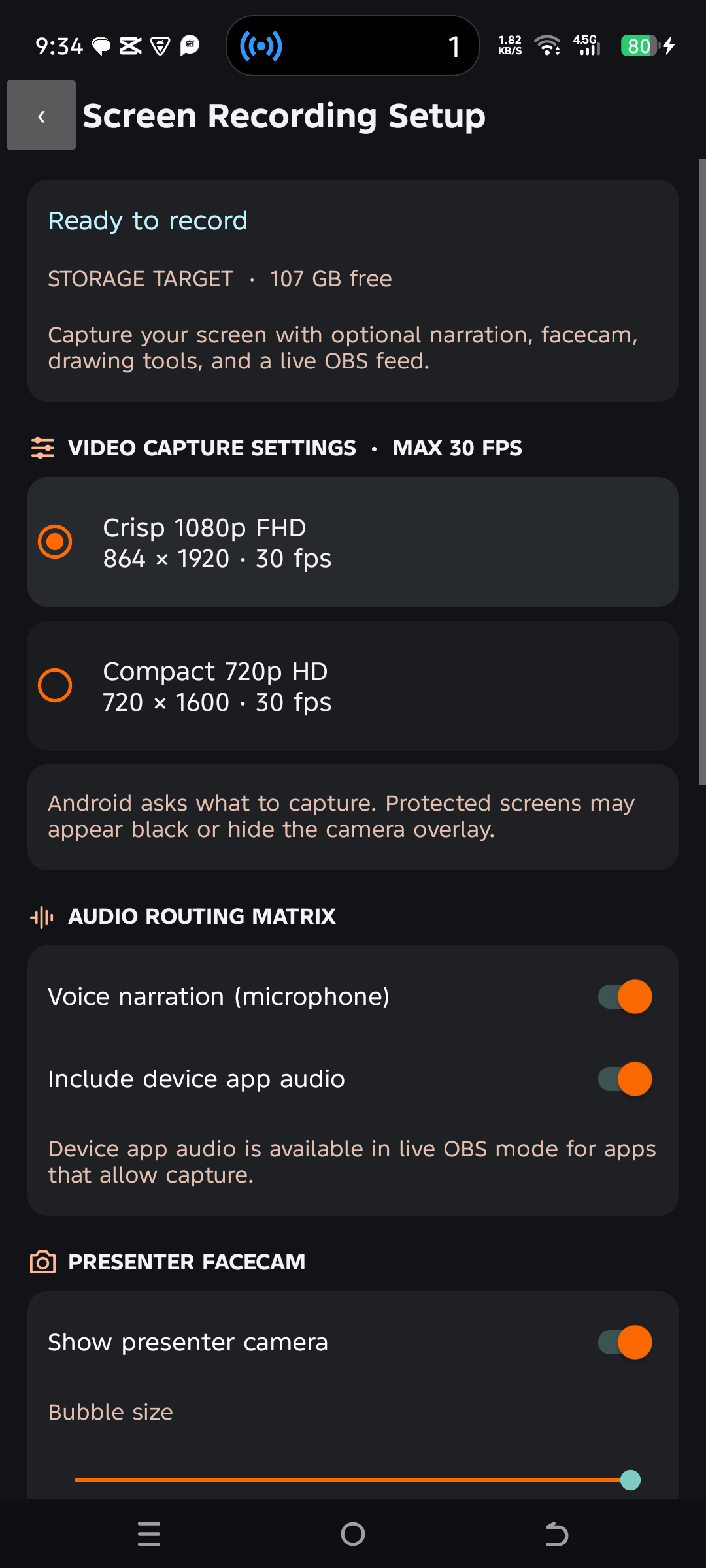
Turn on Voice narration and Show presenter camera. Allow the camera bubble permission if Android asks.
 23
- 2. Voice narration
- 3. Show presenter camera
PART 4Start and save
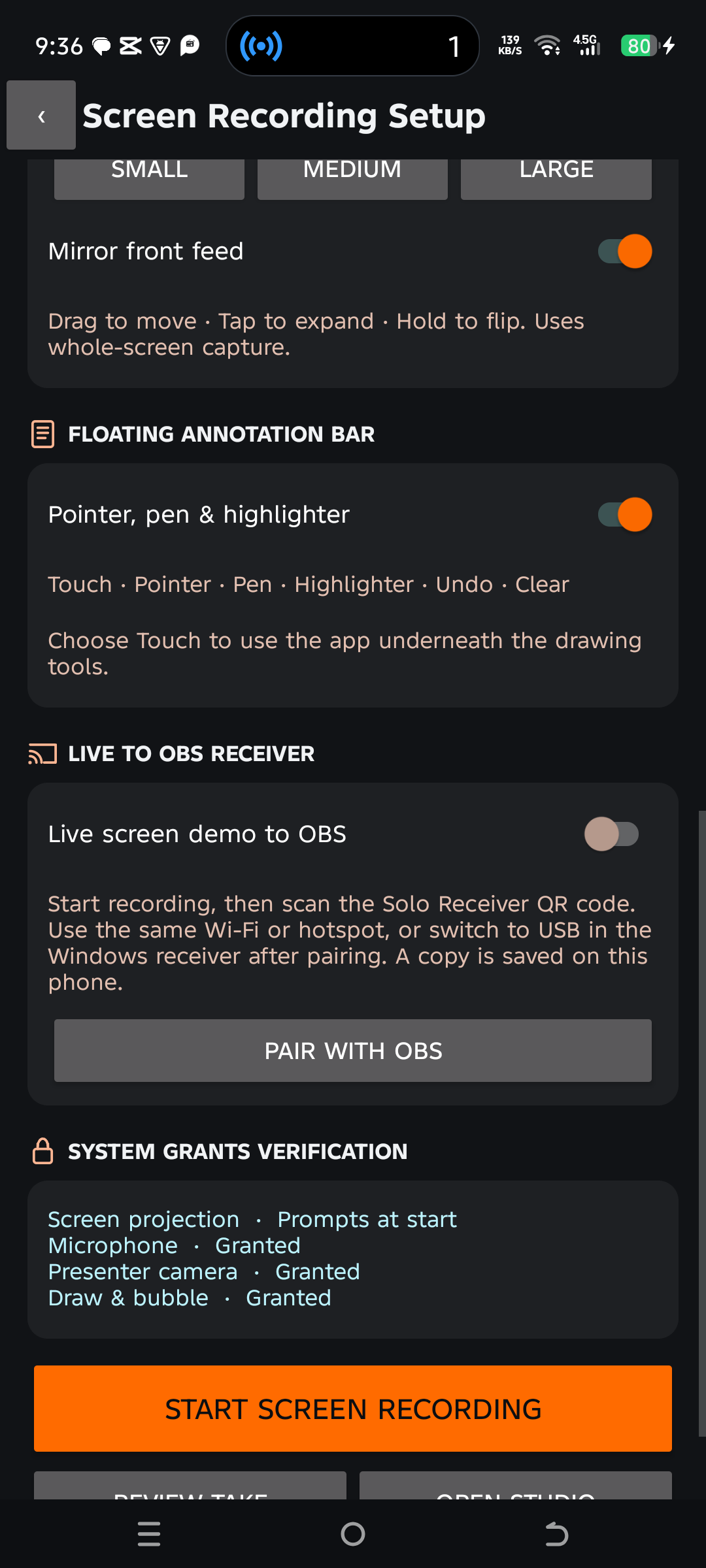
Tap Start screen recording and approve Android capture. Open the app you want to show. Drag the bubble out of the way. When you finish, tap Stop & Save, then Review Take.
 4
- 4. Start screen recording