Show your phone screen in OBS
Demo an Android app from your Windows computer.
Solo Camera is currently available through an approved Android test. Open the test link on your phone and sign in with your approved Google account.
How do I get sound from my phone into OBS?
Enable narration or supported app audio on the phone. If you add the feed manually, turn on Control audio via OBS in the Browser Source and check its meter in the Audio Mixer.
STEP 1Install the phone and Windows apps
- On Android, install Solo Camera if your account has access, then open it.
- On your Windows PC, download Solo Receiver. Right-click the ZIP, choose Extract All, then open SoloCamera.Windows.exe from the extracted folder. If Windows asks for it, install the .NET 10 Desktop Runtime.
- Install OBS Studio on the same PC. Connect the phone and PC to the same Wi-Fi, or connect the PC to your phone’s hotspot.
STEP 2Set up your phone screen and sound
- On your phone, open Solo Camera → Screen Rec.
- Turn on Voice narration (microphone) if you want to speak. Turn on Include device app audio if the audience needs to hear the app. Some apps block audio capture.
- Scroll to Live to OBS Receiver. Turn on Live screen demo to OBS, then tap Pair with OBS.
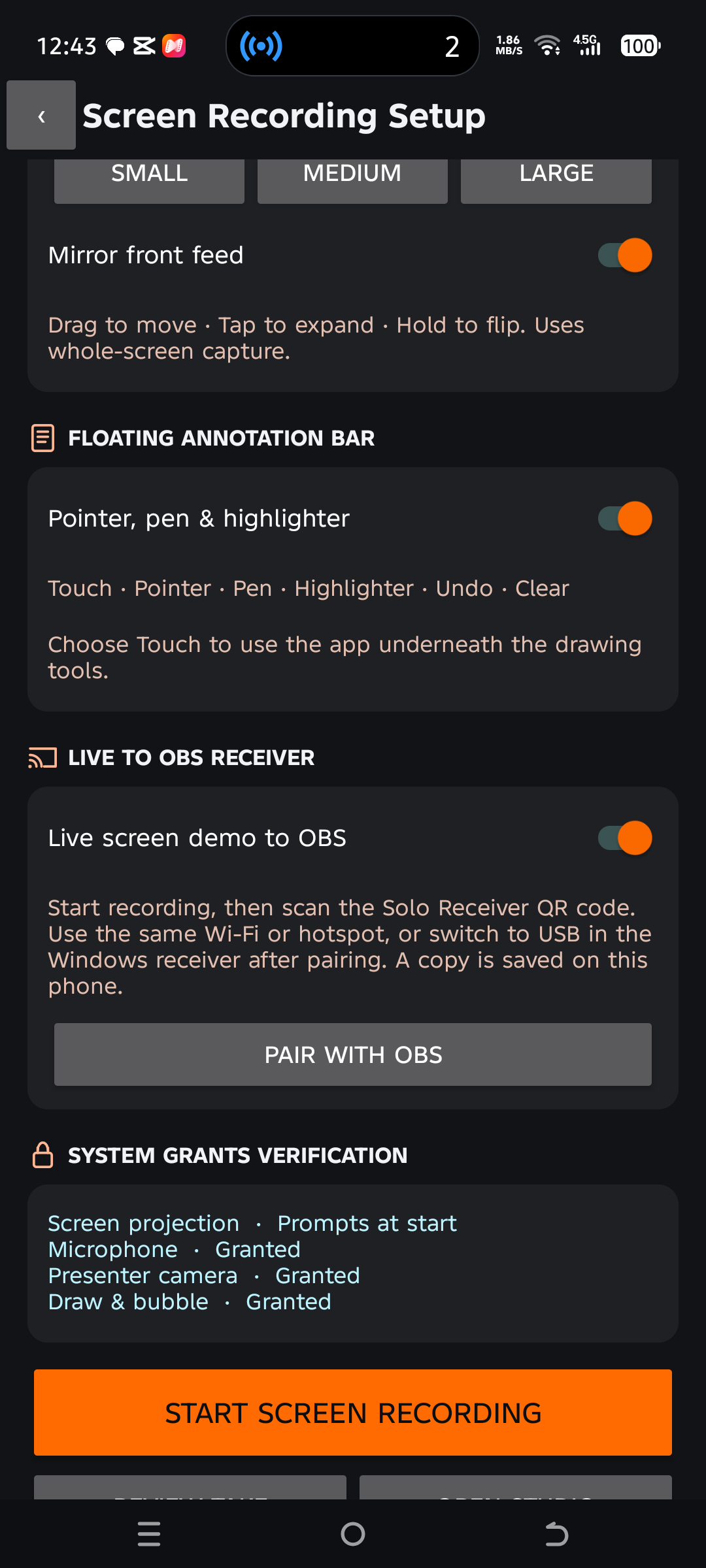 12
STEP 3Open a fresh QR code on Windows
- Leave Solo Receiver open. In the Camera 1 slot, click Pair by QR.
- Keep that window open. Your PC generates a code for this connection. If it expires, close the pairing window and click Pair by QR again.
In Solo Receiver, click Pair by QR in Camera 1.The receiver shows a pairing code here. The code and local address are hidden in this example. STEP 4Start recording and scan from your phone
- On the phone’s Pair with OBS page, tap Start recording for OBS. Approve the Android capture prompt. Choose the entire screen if you will switch between apps during the demo.
- Return to Solo Camera’s Screen Rec controls. Tap Pair with OBS again, then Scan Solo Receiver QR. Allow camera access if Android asks.
- Point the phone at the code shown in Solo Receiver on the PC. Approve the connection on the phone. Swipe or scroll on the phone and check that Camera 1 in Solo Receiver shows the movement.
Before recording, Pair with OBS shows Start recording for OBS. After recording starts, this button becomes Scan Solo Receiver QR. STEP 5Connect Solo Receiver to OBS
- Open OBS Studio. In Tools → WebSocket Server Settings, turn on Enable WebSocket server and apply the settings. Keep authentication enabled. Note the port (usually 4455) and use the password shown by OBS.
- In Solo Receiver, click OBS & Virtual Cam. Enter the same port and password into OBS integration, then click Connect OBS.
- With OBS idle, click Set up webcam scenes. In OBS, select Solo Camera · Camera 1 to show the phone screen. The setup adds a Browser Source and routes its audio through the OBS mixer.
Enter the OBS port and password (1), click Connect OBS (2), then Set up webcam scenes (3). STEP 6Use a Browser Source if you prefer to set it up yourself
- In Solo Receiver, select Camera 1 at the bottom, then click Copy clean feed URL. Keep Solo Receiver running.
- In OBS, select the scene you want. Under Sources, click + → Browser, name it Phone Screen, and paste the copied address into URL.
- Set the width and height to your OBS canvas size. Turn on Control audio via OBS and click OK. For details, see the OBS Browser Source guide.
Copy clean feed URL in Solo Receiver, then paste it into a Browser Source in OBS. STEP 7Check the picture and sound, then record
- Scroll on the phone and confirm the OBS preview moves. Speak and check that the phone source’s meter moves in the Audio Mixer. If you also enabled app sound, play a sound in an app that permits capture.
- If you hear an echo, mute the duplicate microphone or desktop audio source in OBS. Make a short OBS recording and play it back before starting the real demo.
- Click Start Recording in OBS for a local recording, or Start Streaming if you have already set up a streaming destination in OBS. When you finish, stop the OBS output and tap Stop & Save in Solo Camera to save the phone copy.
STEP 8Fix a blank picture or missing sound
- If Solo Receiver has no picture, check the phone is actively recording with Live to OBS enabled and both devices are on the same network. Generate a new QR code and pair again.
- If the receiver shows a picture but OBS is blank, check the Browser Source is visible and uses the current feed URL. Copy it again after restarting Solo Receiver.
- If OBS has a picture but no sound, check the phone audio switches, Control audio via OBS, and the source’s mute button in the OBS mixer. OBS Virtual Camera sends video to other apps; it is not the audio path for this demo.